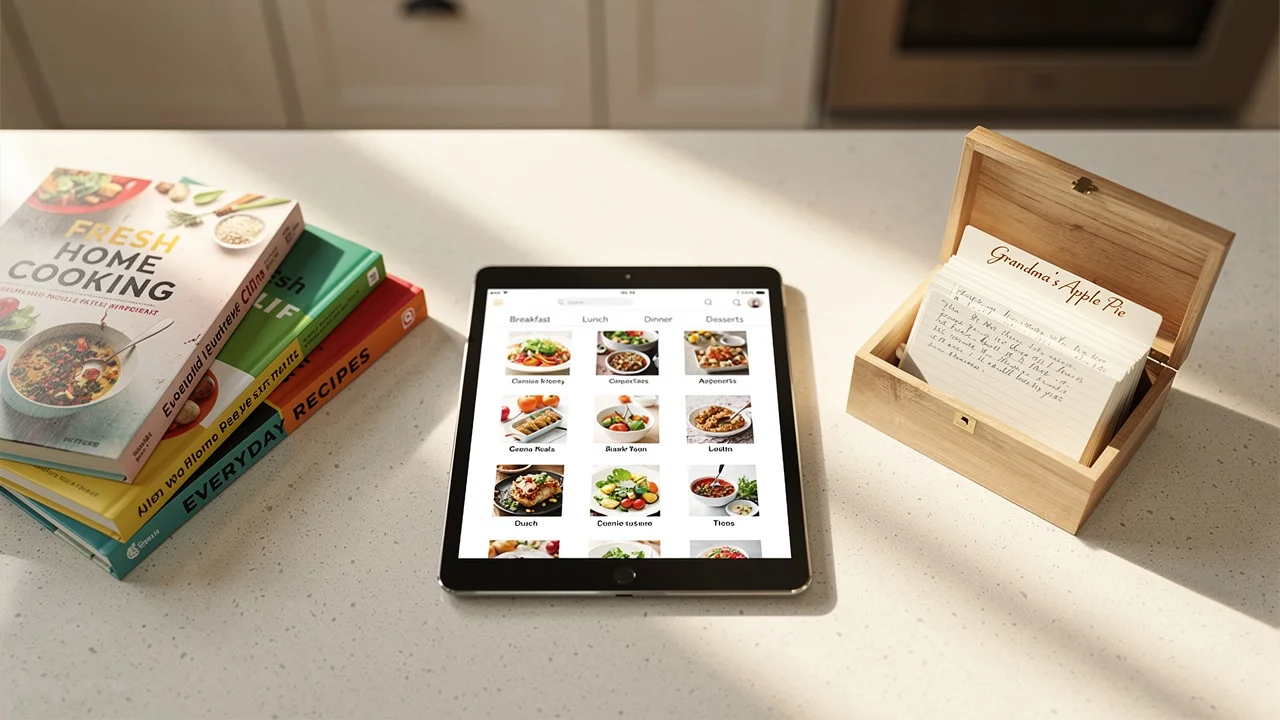
How to save recipes from websites (without the ads and life stories)
Four ways to strip the clutter from recipe websites and keep just the ingredients and steps. From quick browser tricks to apps that store, scale, and plan around your saved recipes.
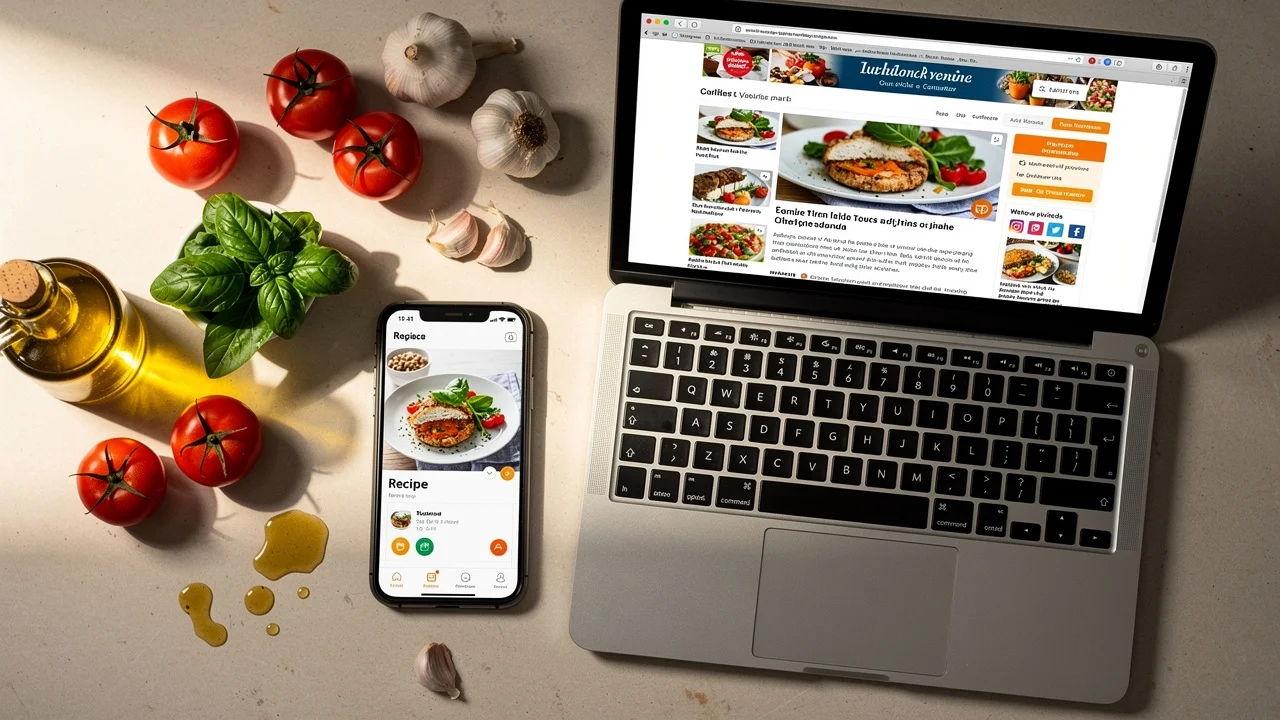
You found a recipe that looks perfect. A crisp photo, five-star reviews, exactly what you want to cook tonight. You tap the link. What you get: a cookie consent banner, an auto-play video ad, three newsletter pop-ups, a paragraph about someone's trip to Tuscany, and six display ad blocks. The ingredient list sits somewhere below the fold.
This is the standard experience of finding recipes online. Between SEO-driven personal stories, display ads, and pop-ups, the average recipe page has become almost unusable for people who just want to cook.
You don't have to put up with it. Here are four ways to save recipes from websites without the ads, ranked from quick workaround to long-term fix.
Why recipe websites are loaded with ads
Food bloggers aren't padding their posts to waste your time. They're working within a system that pays them based on how far you scroll.
Display ad networks like Mediavine and AdThrive pay per impression. More content means more ad slots, which means more revenue. A 300-word recipe generates pennies. The same recipe wrapped in a 2,000-word personal story with process photos generates real income. Some top food bloggers report earning $50,000-100,000 per month from this model.
That's why every recipe opens with five paragraphs about someone's grandmother. It's not narcissism. It's economics. The recipe is what you came for, but the story is what keeps the lights on.
Understanding the problem makes it fixable. You don't need bloggers to change how they write. You need a better way to grab what you came for.
Method 1: Use a recipe manager with AI import
A dedicated recipe manager goes beyond stripping ads. It saves the recipe in your library permanently, in a format built for cooking.
The process:
- Copy the recipe URL from any website
- Paste it into the app
- AI parses the page and extracts ingredients, steps, cook time, and metadata
- The recipe appears in your library: clean, searchable, and ready to use
What separates this from the other methods: the recipe belongs to you now. It's not a bookmark pointing back to the original ad-heavy page. It's a clean copy you can scale to any number of servings, convert between metric and imperial, add to a weekly meal plan, and cook from in step-by-step mode with timers.
Most recipe managers support URL import, but quality varies. Some rely on basic web scraping that breaks on complex layouts. AI-powered importers (like Fond's) read the page the way a human would, recognizing ingredients and instructions even when the formatting is inconsistent.
Fond handles three types of recipe import:
- URLs from any recipe website. Paste the link, get a clean recipe in about 10 seconds.
- Pasted text from emails, PDFs, group chats, or anywhere else. Paste the raw text and the AI structures it.
- Photos of cookbook pages, handwritten recipe cards, or magazine clippings. Upload the image and the AI reads it.
Best for: anyone who saves recipes regularly and wants them searchable, scalable, and in one place.
Method 2: Use a recipe extraction site
Sites like Cooked.wiki and Drizzlelemons let you paste a recipe URL and get a stripped-down version. No ads, no life stories, no pop-ups. Just ingredients and steps on a plain page.
What works well:
- Free and instant. No signup required.
- Great for one-time use when you just need to see the recipe.
- Some offer basic customization like serving size and dietary filters.
What doesn't:
- The recipe disappears when you close the tab. Nothing is saved.
- No recipe scaling, unit conversion, or ingredient consolidation.
- No way to organize recipes, plan meals, or build a shopping list.
- You're swapping one website for another. The recipe still lives on someone else's server.
Extraction sites solve tonight's problem but not next month's. You'll still end up with recipes scattered across browser history, screenshots, and text messages.
Best for: one-time recipe viewing when you don't need to save it.
Method 3: Use your browser's reader mode
Every major browser includes a reader mode that strips a page down to text and images:
- Safari: tap the aA icon in the address bar, then "Show Reader"
- Firefox: click the page icon in the address bar
- Chrome: install a reader mode extension (not built in by default) or use the "Simplify page" option in print preview
Reader mode removes ads, navigation, sidebars, and most pop-ups. You get the article text on a clean background with adjustable font size.
What works well:
- Free. No app, no account, no installation (except Chrome).
- Works on any website, not just recipe sites.
- Good for reading long articles without distractions.
What doesn't:
- Recipe formatting often breaks. Ingredient lists lose their structure, step numbers get stripped, and cooking temperatures can disappear.
- It's a temporary view. Close the tab and you're back to square one.
- Cookie consent banners and some pop-ups still appear.
- No cooking features: no scaling, no timers, no step-by-step view.
Best for: reading food articles. Not reliable for actually cooking from a recipe.
Method 4: Use an ad blocker
Extensions like uBlock Origin and AdBlock Plus remove display ads from every website you visit. Install once and forget about it.
What works well:
- Eliminates most banner ads, auto-play videos, and pop-under ads.
- Works everywhere, not just recipe sites.
- Free and runs in the background.
What doesn't:
- Removes the ads but not the content bloat. The 2,000-word personal story remains. The recipe is still buried.
- Some recipe sites detect ad blockers and gate content behind "disable your ad blocker" modals.
- Newsletter pop-ups, cookie banners, and interstitials often bypass ad blockers.
- No recipe saving, searching, or organizing.
Best for: general browsing comfort. Reduces visual noise but doesn't solve the recipe-specific problem.
What about the "jump to recipe" button?
Many recipe blogs now include a "jump to recipe" button at the top of the post. Tapping it scrolls past the story straight to the recipe card. Some also offer a "print recipe" button that renders a clean, printable version.
These help, but they have limits:
- Not every blog includes them.
- The recipe card still sits on the original site, surrounded by ads.
- "Print recipe" opens a new tab but doesn't save anything.
- Neither option lets you scale, convert units, or add the recipe to a meal plan.
Think of these buttons as a partial fix. They get you to the recipe faster, but they don't get the recipe out of the website and into your kitchen.
Saving recipes from social media
Instagram reels, TikTok videos, and YouTube shorts are where a growing number of home cooks discover recipes. The problem: these platforms are designed for scrolling, not saving. Your "saved" folder becomes a graveyard of bookmarks you'll never revisit.
To actually save a social media recipe:
- Screenshot the ingredients and steps (or screen-record the video).
- Upload the image to a recipe manager with photo import. The AI reads the text in the image and converts it to a structured recipe.
- The recipe now lives in your library, searchable and scalable, even if the original post gets deleted.
This matters because social media content is temporary. Posts get deleted, accounts go private, and algorithms bury old content. A saved recipe in your own library is permanent.
The full picture: save, organize, cook
If you only save one recipe a year, a quick extraction site or reader mode works fine. If you cook regularly, the math changes. You need a system, not a workaround.
Here's what a recipe management workflow looks like:
- Find a recipe anywhere: website, social media, cookbook, family group chat
- Import it by pasting the URL, text, or uploading a photo
- Organize it into collections (weeknight dinners, holiday baking, meal prep)
- Plan around it by dragging recipes onto a weekly meal plan
- Shop for it with an auto-generated shopping list that consolidates ingredients across recipes
- Cook from it in a step-by-step view with built-in timers and a screen that stays on
That's the gap between stripping ads from one page tonight and building a recipe library that makes dinner easier every week.
Comparison: which method does what?
| Method | Saves the recipe? | Scales servings? | Converts units? | Meal planning? | Cost |
|---|---|---|---|---|---|
| Recipe manager with AI import | Yes | Yes | Yes | Yes | Free-$8/mo |
| Recipe extraction site | No | Some | No | No | Free |
| Browser reader mode | No | No | No | No | Free |
| Ad blocker | No | No | No | No | Free |
| "Jump to recipe" button | No | No | No | No | Free |
If you just want to read a recipe right now, reader mode or an extraction site does the job.
If you cook regularly and want your recipes in one searchable place, connected to meal planning and shopping lists, a recipe manager with AI import is the tool that changes the workflow. Start with one recipe. Paste a URL and see how it works.
Frequently asked questions
Yes. AI-powered recipe importers like Fond work with virtually any recipe website. Paste the URL and the AI extracts ingredients, steps, and metadata, regardless of the site's layout or how many ads it has. For sites behind paywalls, you can paste the recipe text or upload a screenshot instead.
Browser reader mode (built into Safari, Firefox, and Chrome) is free and strips most ads. Recipe extraction sites like Cooked.wiki are also free for one-off use. For saving and organizing recipes long-term, Fond's free plan supports up to 50 recipes with AI import included.
Food bloggers earn revenue from display ads, which pay based on page views and scroll depth. Longer pages with more content mean more ad slots and more money. The life stories before the recipe aren't ego. They're how bloggers fund their sites. Ad networks like Mediavine require a minimum word count for maximum ad revenue.
Some recipe apps support importing from social media posts and videos. Fond's AI import handles URLs, pasted text, and uploaded photos. You can screenshot a recipe from any social media platform and import the photo directly. The AI reads the image and extracts the ingredients and steps.
Many recipe blogs include a 'jump to recipe' button at the top that skips to the recipe card, and a 'print recipe' button that shows a clean version. These work for one-off use but don't save the recipe anywhere. You'll need to find the page again next time. A recipe manager saves a permanent, ad-free copy you can access anytime.
A recipe clipper grabs recipes from websites, usually through a browser extension. A recipe manager does that too, but also lets you organize recipes into collections, scale ingredients, convert units, plan meals, and generate shopping lists. Fond combines AI-powered import with full recipe management.