 Bastien
How to save recipes from websites, TikTok and Instagram (without the ads)
Four ways to save a recipe so you actually find it again: a recipe manager with AI import, an extraction site, browser reader mode, and an ad blocker. What each one keeps, what it loses, and how to save recipes from TikTok, Instagram, Facebook and your iPhone.
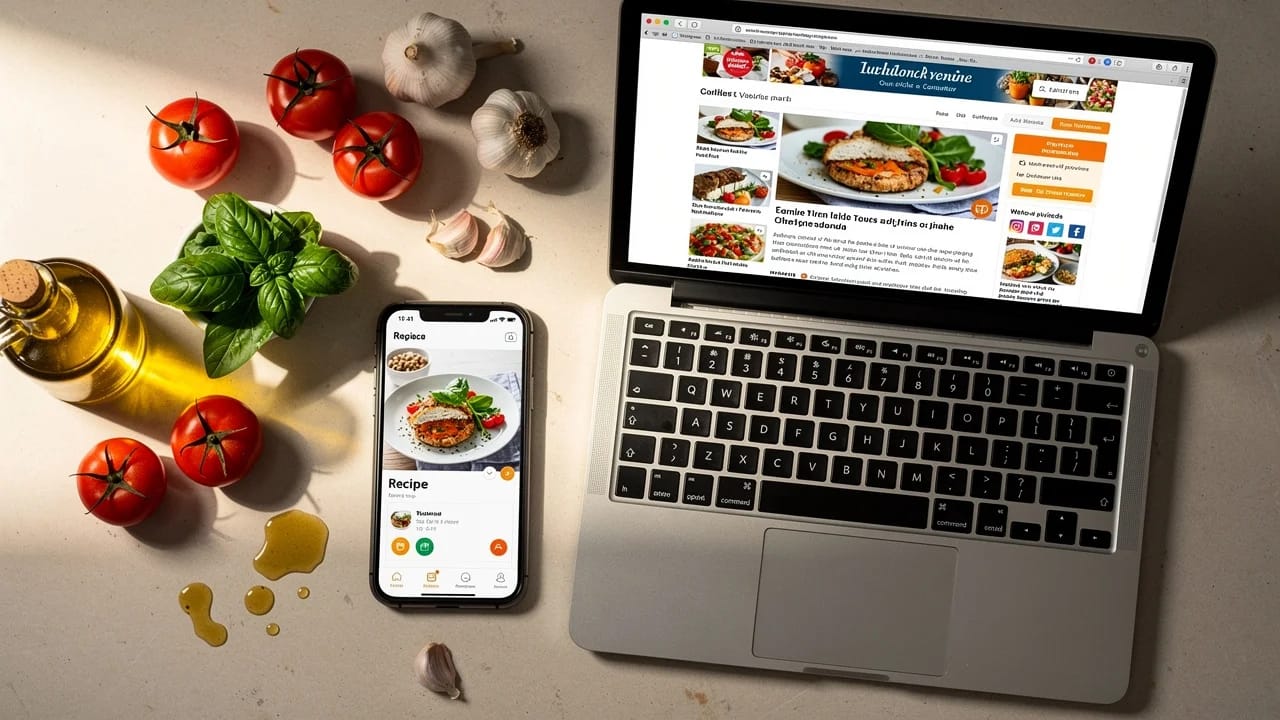
You found a recipe that looks perfect: a crisp photo, five-star reviews, exactly what you want to cook tonight. You tap the link and get a cookie banner, an auto-play video ad, three newsletter pop-ups, a paragraph about someone's trip to Tuscany, and six display ad blocks. The ingredient list sits somewhere below the fold.
That is the standard experience of finding recipes online, and it is why "how to save recipes" is a question people ask about websites, TikTok, Instagram and their own camera roll. Here are four ways to do it, ranked from quick workaround to a system that keeps the recipe for good.
Why recipe websites are loaded with ads
Food bloggers are not padding their posts to waste your time. They work inside a system that pays them by the impression: more content means more ad slots and more revenue, so a recipe wrapped in a long story and process photos earns more than the recipe alone. The personal essay before the ingredients is economics, not narcissism. Understanding that makes the problem fixable: you do not need bloggers to change how they write, you need a better way to grab what you came for.
Method 1: Use a recipe manager with AI import
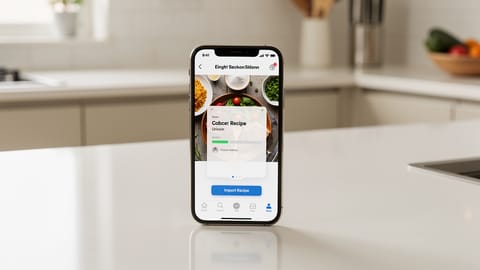
A dedicated recipe manager does more than strip ads. It saves the recipe in your library permanently, in a format built for cooking.
What separates this from the other methods: the recipe belongs to you now. It is not a bookmark pointing back at the ad-heavy page. It is a clean card you can scale to any number of servings, convert between metric and imperial, add to a weekly meal plan, and cook from step by step with timers while the screen stays on.
Most recipe apps support URL import, but quality varies. Some rely on basic scraping that breaks on complex layouts or only works when the site publishes structured Recipe data (the Schema.org format many blogs use). AI-powered importers read the page the way a person would, recognizing ingredients and instructions even when the formatting is inconsistent, and Fond tells you when a page does not contain enough to make a recipe rather than inventing the gaps.
Fond handles three kinds of recipe import:
- Links from any recipe website, and from Instagram, TikTok, Pinterest or YouTube.
- Pasted text from emails, PDFs, group chats, or anywhere else.
- Photos of cookbook pages, handwritten recipe cards, magazine clippings, or screenshots.
Best for: anyone who saves recipes regularly and wants them searchable, scalable, and in one place. Fond is not released yet; at launch the Free plan includes 10 AI imports a month (join the waitlist). For the step-by-step on URL import specifically, see how to import recipes from websites.
Method 2: Use a recipe extraction site
Recipe extraction sites take a URL and return a stripped-down version: ingredients and steps on a plain page, no story, no pop-ups. Some now ask you to create an account; most keep nothing once you close the tab.
Best for: one-time viewing when you do not need to keep the recipe.
Method 3: Use your browser's reader mode
Every major browser can strip a page down to text and images:
- Safari: tap the aA icon in the address bar, then "Show Reader"
- Firefox: click the page icon in the address bar
- Chrome: install a reader-mode extension, or use "Simplify page" in the print preview
Reader mode removes ads, navigation, sidebars and most pop-ups. Results on recipe pages are inconsistent: some sites keep their ingredient lists and numbered steps, others lose quantities or step numbers in the conversion, because reader mode is built for articles rather than recipe cards.
Best for: reading food writing. Not reliable for cooking from.
Method 4: Use an ad blocker
Extensions like uBlock Origin remove display ads from every site you visit. Install once and forget it.
Best for: general browsing comfort. It reduces noise but does not solve the recipe problem.
What about the "jump to recipe" button?
Many recipe blogs include a "jump to recipe" button that scrolls past the story to the recipe card, and a "print recipe" button that renders a cleaner version. Both help, with limits: not every blog has them, the card still sits among the ads, "print" opens a new tab but saves nothing, and neither lets you scale, convert units, or add the recipe to a meal plan. Treat them as a shortcut to the recipe, not a way to keep it.
How to save recipes from TikTok, Instagram and Facebook
Reels, TikToks and Facebook videos are where a growing share of home cooks find recipes, and the platforms are built for scrolling, not saving. The "saved" folder becomes a graveyard of posts you never revisit, and posts get deleted, accounts go private, and the algorithm buries old content.
To keep a social media recipe:
- Share the post or video to Fond, or paste its link. Fond uses the URL, caption, page text and available metadata to build a recipe card. Results are best when the creator wrote the ingredients and amounts down.
- If the caption is thin, screenshot the ingredients and steps (or the on-screen text) and import the image. Fond reads the text in the photo and turns it into a structured recipe.
- Fill the gaps. When a creator leaves out quantities, Fond keeps what it can and flags what needs your eye instead of pretending the recipe is complete.
The recipe now lives in your library, searchable and scalable, even if the original post disappears.
How to save recipes on iPhone
On iPhone the share sheet does most of the work. From Safari, Instagram, TikTok, Facebook, or the Photos app, tap Share, choose Fond, and the page, post or screenshot goes straight into an import without leaving the app you are in. Screenshots of recipes in your camera roll can be imported as photos the same way. Once saved, the recipe syncs to your other devices.
The full picture: save, organize, cook
If you save one recipe a year, an extraction site or reader mode is enough. If you cook regularly, you need a system, not a workaround.
That is the gap between stripping ads from one page tonight and building a library that makes dinner easier every week. Once you have saved a few, see how to organize recipes digitally, and for a comparison of the best recipe apps, we have a dedicated guide.
Comparison: which method does what?
- A recipe manager with AI import is the only method that permanently saves, scales and organizes recipes
- Extraction sites and reader mode work for one-off viewing but keep nothing
- Ad blockers remove ads but leave the long story intact
- Social media recipes are temporary: share them to Fond or screenshot them before they disappear
- Start with one recipe: paste a link into Fond and see the difference